Case Study

NetDocuments
Word Add-in

Enabling secure co-authoring and document management directly inside Microsoft Word — without leaving the document.

IndustryLegal Technology / SaaS
RoleLead Product Designer
PlatformMicrosoft Word / M365
TimelineOngoing · Sep 2023 — Present
CompanyNetDocuments
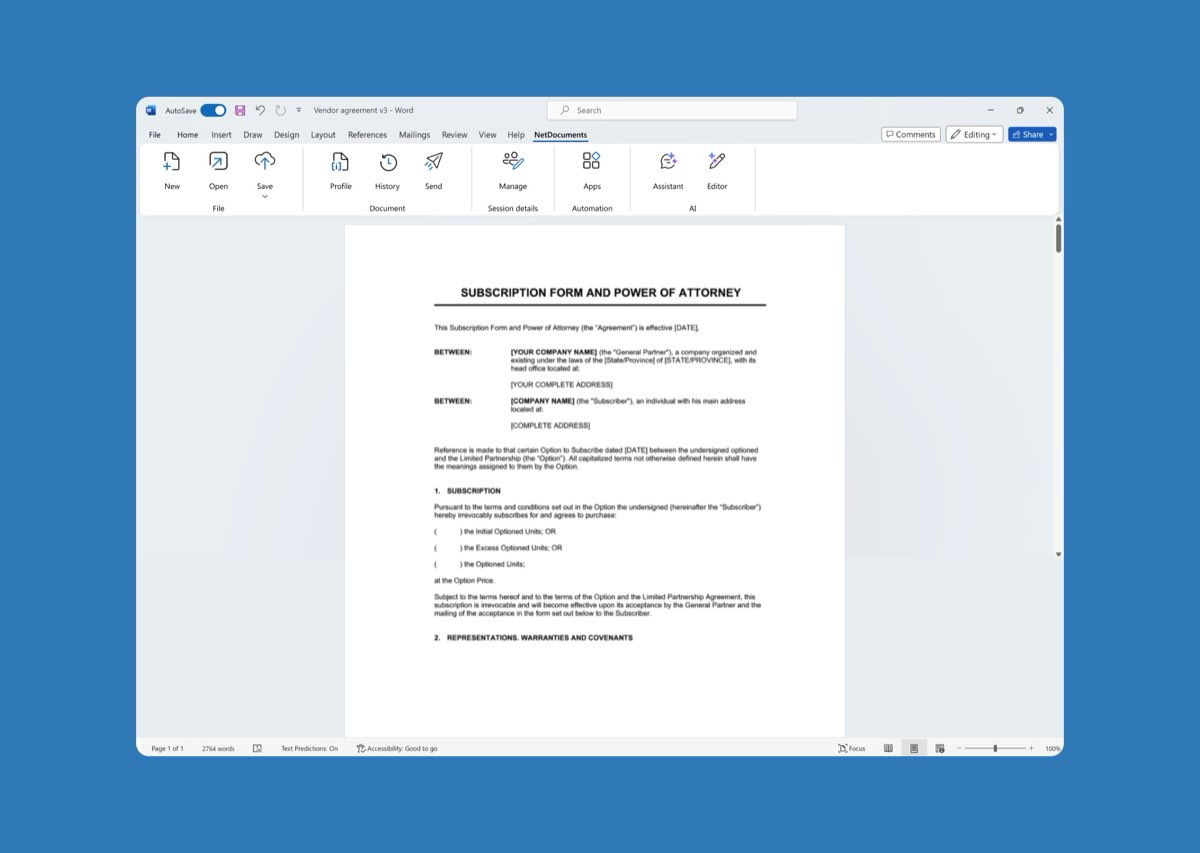
NetDocuments Word Add-in
01 — Overview

Bringing Document
Management Into Word

Legal professionals spend the majority of their day drafting and editing in Microsoft Word. Historically, NetDocuments users had to constantly move between the ND web platform and Word to open files, save changes, manage versions, and add required metadata — a workflow that fragmented focus and slowed work.

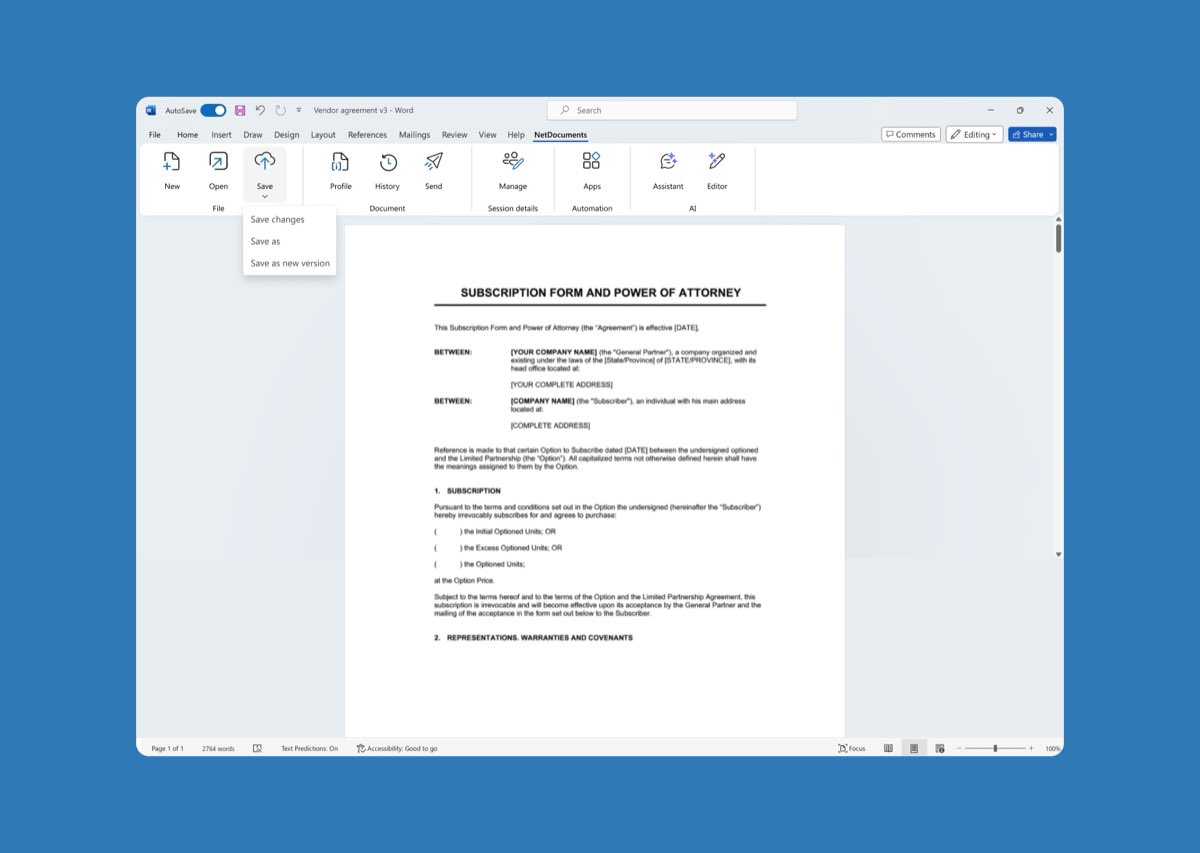
I led end-to-end UX design of a net-new Word Add-in that brings NetDocuments directly into the Word ribbon. Users can now open matters, save documents, co-author in real time, and stay compliant — without ever leaving Word.

View Live Product
UX ResearchProduct DesignMicrosoft 365 Fluent DesignPrototypingUsability Testing Co-AuthoringInformation Architecture
Project Scope
Net New.
Shipped the first native Word Add-in in NetDocuments' M365 integration suite — a brand new product surface built from zero
230+
Research participants across surveys and interviews — attorneys, IT admins, and firm leadership
Zero.
Compliance compromises — all firm metadata, versioning, and audit trail requirements met in the shipped product
02 — Problem Statement

Legal Work Happens in Word.
Document Management Didn't.

Users were forced to jump between Word and the NetDocuments web platform to open files, save updates, manage versions, and add metadata. This constant task-switching broke concentration and made real-time collaboration nearly impossible in a profession where accuracy and speed are critical.

The legacy checkout model meant only one person could edit a document at a time — creating firm-wide bottlenecks on active matters. Worse, documents saved locally outside of ND created real compliance exposure that legal teams couldn't afford to ignore.

I lose my train of thought every time I have to go back to the browser to save or check a version. I just want to stay in Word and do my work.

— Senior Associate Attorney, User Research Interview
03 — Research & Insights

Understanding How
Legal Teams Actually Work

The project opened with a broad mixed-method research effort: a general interest survey (n=87), a detailed preferences survey (n=130), end-user interviews (n=7), and admin and partner interviews (n=10+). An in-product feedback modal recruited active users mid-workflow — reaching people during real sessions, not in a lab setting.

The research surfaced a clear tension: attorneys wanted co-authoring, but were deeply concerned about losing control of their documents in the process.
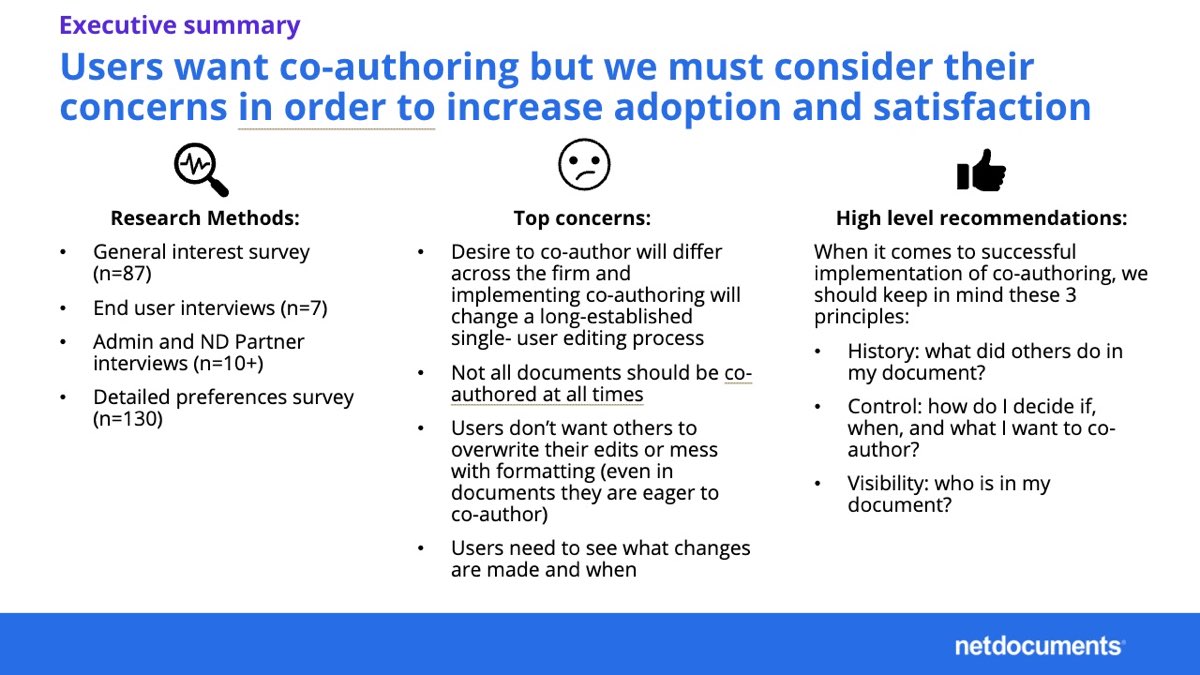
Research executive summary
Executive summary for leadership — co-authoring is wanted, but adoption requires configurability, control, and session visibility
In-product recruitment modal
In-product modal used to recruit research participants during live Word sessions
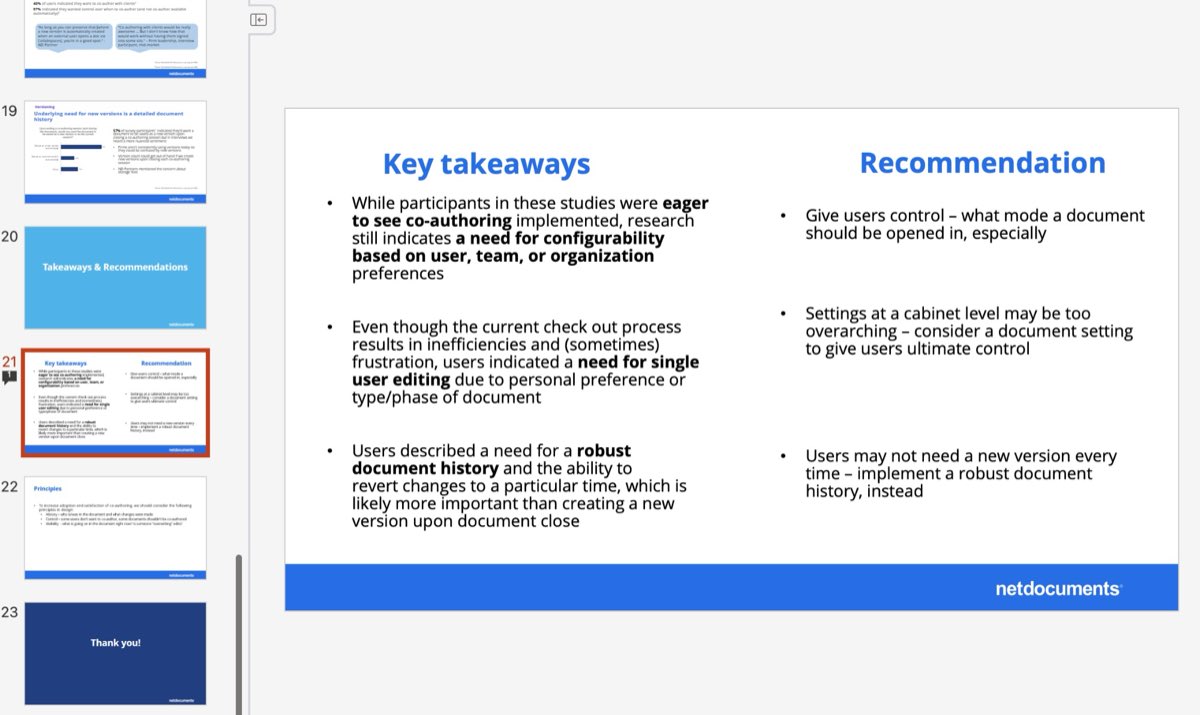
Research presentation takeaways
Key takeaways from the co-authoring research presentation — single-user editing control and robust document history emerged as top priorities across all groups
Word Is the Primary Workspace
Every participant opened Word first. Any friction requiring them to leave — even briefly — was treated as a hard adoption blocker, not a minor inconvenience.
🔒
Control Matters as Much as Collaboration
Even users eager to co-author didn't want others overwriting their edits or reformatting shared documents. Session control and collaborator visibility were non-negotiable.
📋
History Over New Versions
Users needed robust change history and the ability to revert — more than auto-creating new versions on close. This directly reframed the feature priority in the PRD.
04 — User Persona

Who We Designed For

Rowan - Associate Attorney
Rowan
Associate Attorney
Tech Proficiency
High
Primary Tool
Microsoft Word
Active Matters
10–30 at once
Daily Word Usage
6+ hours
Goals
Work in Word without switching tools
Collaborate on contracts in real time
Stay compliant without extra steps
Frustrations
Context-switching breaks focus
One person can edit at a time
Local saves create compliance risk
Behaviors
Opens Word before anything else
Co-authors contracts daily
Relies on version history to recover from errors

Rowan's frustration — losing focus every time he left Word — drove the decision to embed the entire save, version, and co-auth flow inside the ribbon rather than launching a browser or separate panel. Every action that could stay in-context did.

— Design principle derived from persona research
05 — Design Process

How We Got There

01
Discovery
Research & Workflow Mapping
Ran surveys (n=217+) and moderated interviews with attorneys, IT admins, and firm leadership. Mapped every step of the document open, edit, save, and version workflow to surface the highest-friction moments.
02
Define
Synthesis & Problem Framing
Synthesized findings into core themes in FigJam workshops. Aligned the team on a shared design challenge: bring ND into Word without adding cognitive load or breaking compliance workflows.
03
Design
Flows, Architecture & High-Fidelity
Mapped three co-authoring session flows before writing any UI. Designed the ribbon layout, save and open dialogs, session controls, and error states — all aligned to Microsoft Fluent Design for native feel and enterprise trust.
04
Validate
Prototype Testing & Live Sessions
Ran Maze prototype tests in realistic legal scenarios, then live co-authoring sessions with the team. Iterated on session state indicators, open and save flows, and surfaced platform-level compatibility issues before launch.
06 — User Flows

Mapping Every Path
Before Writing Any UI

Co-authoring introduced significant complexity. Three distinct session types — checkout, open co-auth, and protected co-auth — each had their own entry path, session behavior, and close sequence. Detailed scenario flows were built before any screen design to expose edge cases early: how session close differs from document save, how external collaborators gain access, and what conflict resolution looks like mid-session.

Primary scenario user flows
Primary scenario flows for all three session types — mapping collaborator entry paths, session controls, and close behavior
Co-auth defaults model
Co-auth defaults model — progressive disclosure from checkout to open co-auth, with user override controls at each stage
07 — Design Solution

One Experience.
Inside Word.

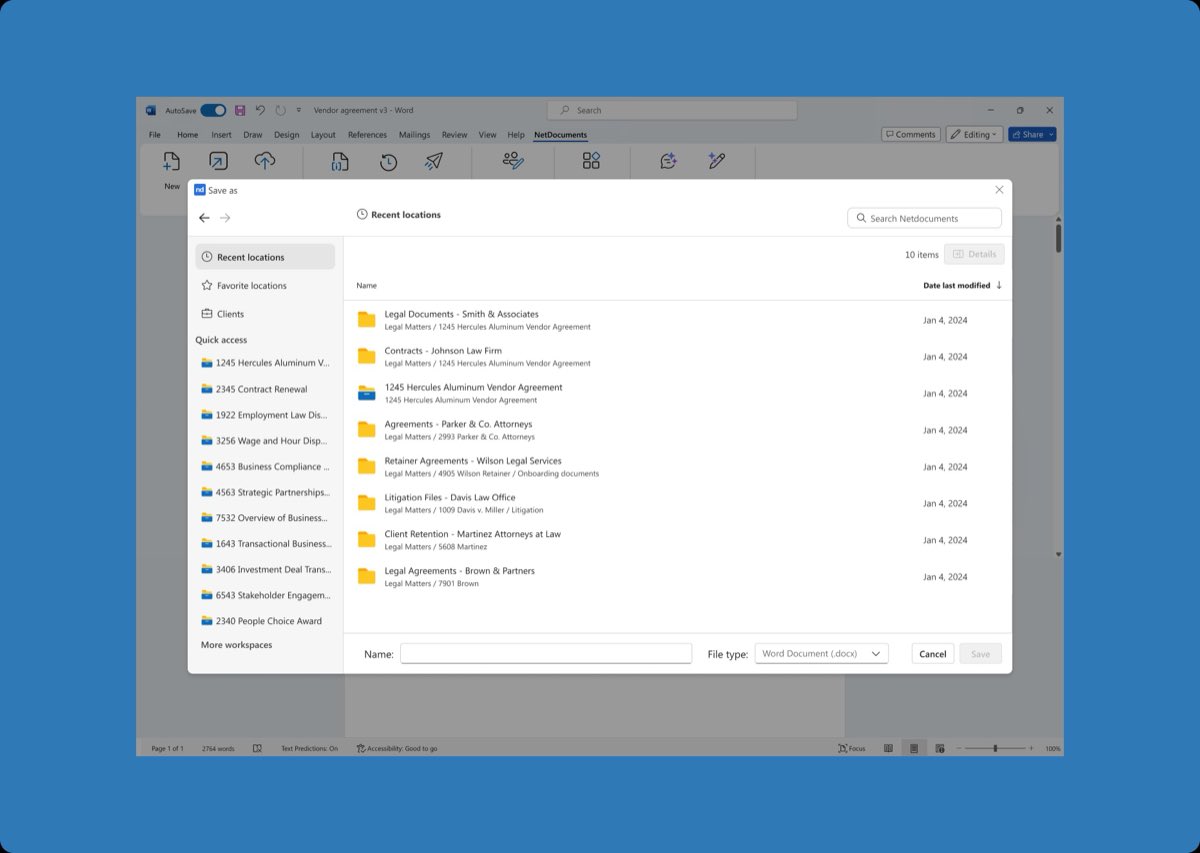
Design moved in deliberate layers — wireframes first to validate IA, then high-fidelity screens aligned to M365 Fluent Design patterns. The ribbon icon went through five concept directions before landing on a version that felt native. The Save As dialog needed to surface favorites, recent files, and full DMS navigation in a single panel that matched Word's own patterns — so it took careful iteration to get right.

Save dialog wireframe
Early save dialog wireframe — exploring browse vs. favorites navigation, stage location header, and data grid layout
Ribbon icon concepts
Five ribbon icon concept directions evaluated for alignment with Microsoft Fluent Design language
Save As high-fidelity
Save As dialog in high-fidelity — favorite locations, recent files, matter sidebar, and file type controls modeled after M365 native patterns
Error state designs
Error state progressions — save-in-progress, retry, and contact-support fallback — in full-dialog and compact variants
08 — Testing & Validation

Validating With
Real Attorneys

Prototype tests ran through Maze with participants navigating as a lawyer at a real legal firm — grounding tasks in authentic scenarios. Live co-authoring sessions with the extended team then surfaced platform-specific issues that no prototype could catch, particularly Mac vs. Windows compatibility gaps that became pre-launch engineering priorities.

Maze prototype test
Maze prototype test — 100% task completion on the default open scenario; session state visibility gaps found and addressed in iteration
Live co-authoring session
Live co-authoring session in Teams — real-time testing surfaced Mac/Windows gaps flagged as pre-launch engineering blockers
09 — Final Designs

The Word Add-in,
Shipped

The final product brings NetDocuments natively into the Microsoft Word ribbon. Attorneys can open documents from any client matter, save back to the right location with required metadata, co-author with session-level control, and access version history — all without leaving Word.

Open dialog final
Open dialog — recent locations, favorite matters, and full DMS navigation directly inside Word
Save As final
Save As dialog — favorite locations, recent files, matter sidebar, and file type controls aligned to M365 native patterns
10 — Outcomes

What We Delivered

Net-New Word Add-in Shipped
Delivered a production-ready Word Add-in meeting users where they work — inside the tool that drives their entire day. The first native ND surface in the M365 ecosystem.
Co-Authoring With Control
Three configurable session types — checkout, open co-auth, and restricted co-auth — give firms the flexibility research showed was essential for adoption across practice groups.
Compliance by Default
Every save routes through the ND matter structure, capturing required metadata and audit trails automatically. No more documents living outside the DMS.
Fluent Design = Enterprise Trust
Aligning with Microsoft's Fluent Design system was a strategic prerequisite. Legal firms evaluate tools on how trustworthy they feel — a native-feeling Add-in passes that bar where a bolted-on integration never would.
11 — Key Learnings

What This Project
Taught Me

Learning 01
Meet Users Where They Work
The most impactful solutions reduce friction by integrating into workflows that already exist. The best UX is often invisible — it doesn't ask users to change anything.
Learning 02
Configurability Is the Feature
No single default could serve all firms. Designing explicit admin and user-level controls wasn't scope creep — it was the core of what would drive real adoption.
Learning 03
Live Testing Reveals What Prototypes Miss
The Mac/Windows compatibility issue would never have surfaced in Figma. Scheduling live sessions with the real add-in installed was essential for catching platform-level risk before launch.
Next Case Study
Mindbody →